How to Open the Interaction Menu in GTA Online (PC, PS5, Xbox)
The Interaction Menu is the fastest way to check your inventory, emotes, Quick GPS and MC options in GTA Online. Here's exactly how to open and use it on PC, PS5 and Xbox.
Press M on PC, hold the touchpad on PS5 or PS4, or hold View on Xbox One and Xbox Series X|S. That single input opens the Interaction Menu, the wheel that holds your inventory, emotes, Quick GPS and organization tools in GTA Online. Here is exactly how to open it on every platform and move around it fast.
The essentials
- PC: press M on the keyboard
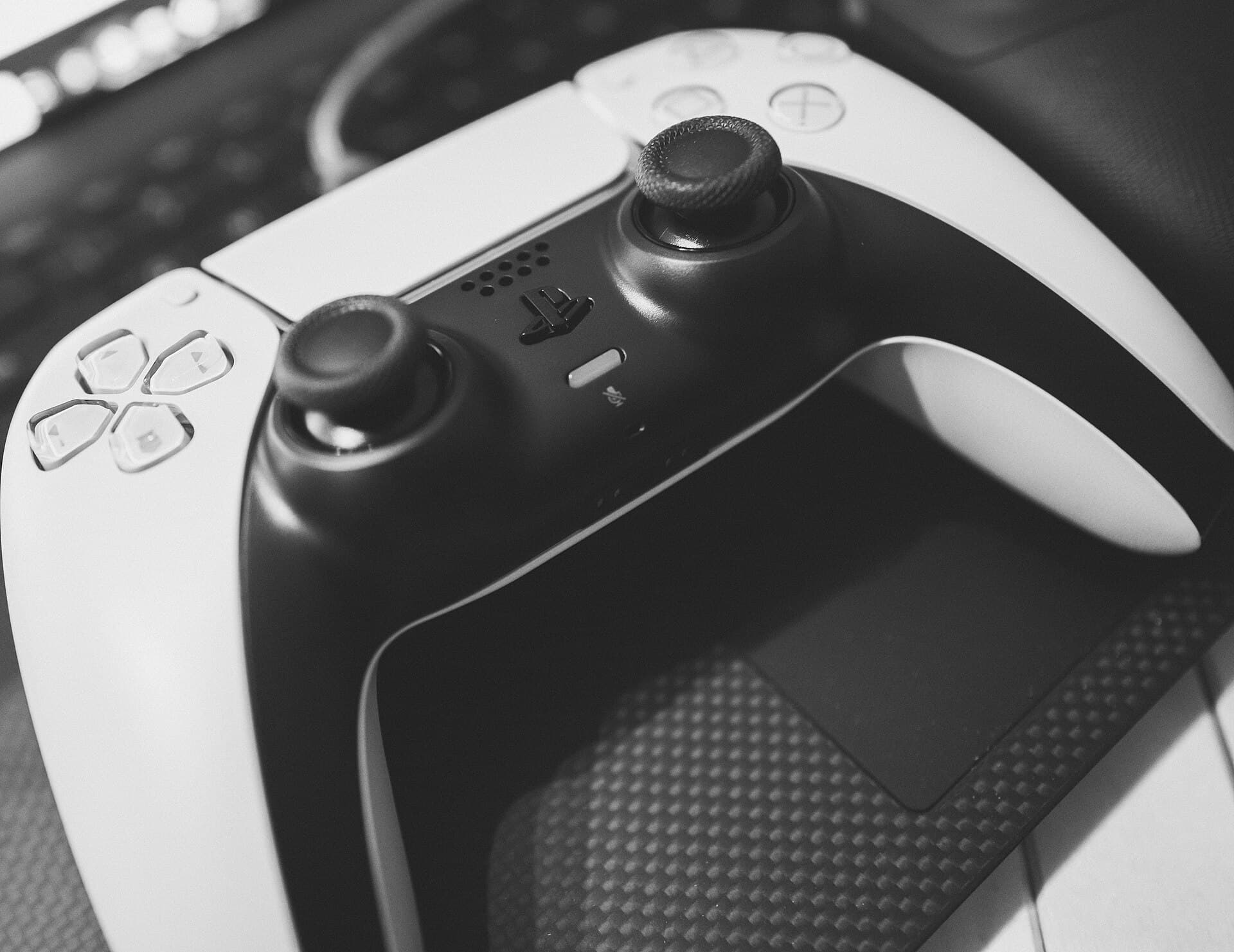
- PS5 / PS4: hold the Touchpad for about a second
- Xbox Series X|S / Xbox One: hold the View button (left of the Xbox logo)
- Navigate with the D-pad, left stick or mouse; confirm with X (PS) or A (Xbox)
- Rebind the shortcut anytime under Settings > Key Bindings/Controls > Interaction Menu
How to open the Interaction Menu on every platform
PC keyboard shortcut
| Action | Key |
|---|---|
| Open Interaction Menu | M |
| Move through the wheel | Arrow keys or mouse |
| Confirm a selection | Enter or left click |
| Close the menu | Esc, or press M again |
If M does nothing, check Settings > Key Bindings > FrontEnd. A conflicting bind from another program (or a custom keyboard profile) is the usual cause, and Rockstar's own support page confirms M is the default PC input.
PlayStation controls (PS5 and PS4)
Press and hold the Touchpad in the middle of the DualSense or DualShock 4. Do not just tap it, a quick tap can open the map instead. Hold it for roughly a second and the wheel appears in the upper-left corner of the screen.
Xbox controls (Xbox Series X|S and Xbox One)
Hold the View button, the small button to the left of the Xbox logo (it replaced the old Back button). Holding it briefly brings up the same wheel used on PC and PlayStation.
What is inside the Interaction Menu
Once it is open, the wheel splits into several submenus. The exact list depends on what you own in GTA Online, but the core set is always there.
Inventory
Weapons, ammo, snacks and body armor live here. You can equip, drop or check quantities without pausing the game, which matters mid-firefight or right before a heist. Keep snacks and armor topped up before starting anything from the best money-making methods in GTA Online, since most grinds assume you are not stopping to shop mid-run.
Interaction
This submenu covers emotes and animations, vehicle interactions (seatbelt, hazard lights, radio), and player-to-player actions like giving money or reviving a friend. It is also where chat and voice settings sit if you need to mute someone fast.
Quick GPS
Quick GPS sets a waypoint straight to properties and businesses you own, without opening the pause menu map. It is the fastest way to jump between a bunker, a nightclub or an office when you are running a full business loop, exactly the kind of setup covered in the best GTA Online businesses ranked by profit.
MC President and organization menus
If you own a Motorcycle Club business or a CEO organization, a dedicated submenu appears here (MC President, CEO, or similar depending on your role). It lets you launch sell missions, resupply, or manage staff without walking to a computer. This is the same menu you will use constantly if you are running the MC businesses in GTA Online, a bunker and Gunrunning operation, or a Nightclub.
Style
A quick-swap list of saved outfits, so you can change clothes without visiting a store. Useful before a heist that requires a specific fit, or after a mission strips your gear.
How to navigate and select options fast
The wheel is built for speed once you know the layout:
- Open the menu with M, Touchpad or View.
- Move up or down the wheel to pick a category (Inventory, Interaction, Quick GPS, and so on).
- Move left or right to cycle through that category's options.
- Confirm with Enter/click on PC, X on PS5/PS4, or A on Xbox.
- Close it the same way you opened it, or press the corresponding cancel button (Esc, Circle, B).
On controller, holding down on the D-pad from the Interaction Menu often jumps straight to Quick GPS in many setups, which is worth memorizing if you check business waypoints constantly.
Fixing a menu that will not open
A few things stop the Interaction Menu from responding:
- Rebound keys. If you changed your control scheme, M or View might now do something else. Check Settings > Key Bindings (PC) or Settings > Controls (console) and look for "Interaction Menu."
- You are in a cutscene or scripted sequence. The wheel is disabled during missions with forced camera control, and briefly after respawning.
- Controller connection issues. A dropped Bluetooth or wireless signal can eat inputs. Reconnect the controller and try again.
- Corrupted settings. As a last resort, use "Restore Defaults" in the control settings, then rebind anything custom.
Quick tips to save time with the wheel
- Use Quick GPS instead of the full pause-menu map whenever you are heading to a property you already own. It shaves several seconds off every trip, which adds up across a full money-making session.
- Check your Inventory before every mission load, not after. Running out of snacks mid-heist wastes a restart.
- If you manage several businesses, the MC President/CEO submenu is faster than driving to each computer to start a sell mission, especially once you are juggling a bunker alongside other ventures.
- Rebind the Interaction Menu key early if you play with a non-default control layout. It is one of the most-used shortcuts in the game, so a comfortable bind pays off over hundreds of hours.
Interaction Menu vs. the pause menu
New players often confuse the two, but they do different jobs. The pause menu (Start on Xbox, Options on PlayStation, Esc on PC) covers settings, the full map, your stats, and online session options like Passive Mode or leaving a job. The Interaction Menu stays in the background of gameplay and never fully pauses the world around you online, it is built for quick actions you need without breaking flow: swapping a weapon, firing off an emote, or setting a Quick GPS waypoint mid-drive. If you find yourself opening the full map just to check a business location, that is the moment to switch to Quick GPS instead.
Frequently asked questions
Does the Interaction Menu work in GTA 5 story mode too? Yes. The same wheel and shortcuts (M, Touchpad, View) open a scaled-down Interaction Menu in single-player, though the online-only submenus like MC President or CEO options do not appear since those systems are exclusive to GTA Online.
Can I change what appears on the wheel? You cannot reorder the wheel's default categories, but which submenus show up depends entirely on what you own: buy a Nightclub or a bunker and its management menu appears automatically, sell it and the entry disappears.
Why does my Interaction Menu look different from a friend's? Ownership drives the layout. Two players sitting in the same session can see completely different wheels depending on their businesses, MC membership and CEO status, so do not assume a guide screenshot will match your own menu exactly.
Once the shortcut is muscle memory, the Interaction Menu becomes the fastest way to manage gear, businesses and social actions in GTA Online without ever pausing the action.
Comments (0)
No comments yet. Be the first!