GTA 6 Remote Play: Playing on PS Portal, Phone or Tablet, What Rockstar Confirmed and What Is Still Unclear
Rockstar confirmed on November 10 that GTA 6 supports Remote Play on PlayStation and Xbox. Here is what that means for the PS Portal, your phone, your tablet and your PC, what is official, what is not, and how to set it up before November 19.
Good news if you share the living room TV: Rockstar has confirmed that GTA 6 supports Remote Play on both PlayStation and Xbox. That means you should be able to stream the game from your own console to another screen in the house, or further away. But "Remote Play is supported" is a short sentence, and it leaves real questions open, starting with the one everybody asks: will it work on the PlayStation Portal?
This guide separates what Rockstar actually said from what you can reasonably expect, and shows you how to get set up before the game unlocks on November 19.
The essentials
- Confirmed: Rockstar's pre-load announcement on its Newswire (November 10, 2026) lists Remote Play as supported on PlayStation and Xbox. PlayStation's store listing for the game also marks Remote Play as supported.
- What it is: Remote Play streams the game from a console you own (PS5 or Xbox Series X|S) to another device. The game still runs on your console, at the console's settings.
- PS Portal: not named by Rockstar. The Portal is a dedicated PS5 Remote Play device, so it is the most logical way to use the feature, but treat it as "expected", not "confirmed", until people actually play it on launch night.
- Phone, tablet, PC: through the official PS Remote Play app or the Xbox app, again expected to work, not specifically confirmed by Rockstar for GTA 6.
- Not the same as cloud gaming: Xbox Cloud Gaming (also confirmed, including on Xbox One) runs the game on Microsoft's servers. Remote Play needs your own console switched on at home.
- Not a PC version: streaming to a laptop does not mean GTA 6 is out on PC. There is still no PC release date.
What Rockstar actually confirmed
The statement sits in the same post that opened pre-loads for digital pre-orders on November 10. Alongside the technical details we covered in our article on GTA 6 on PS5 Pro, 30 FPS and PSSR, the post lists Remote Play support for PlayStation and Xbox. That is the full extent of it: one line, no list of devices, no mention of resolution or frame rate when streaming.
So what can we say with confidence?
- The feature is switched on for GTA 6 on both console families. Some games disable Remote Play entirely; this one does not.
- Rockstar did not publish a device list. It did not name the PS Portal, iPhone, Android, iPad, Windows or Mac.
- Rockstar said nothing about GTA Online and Remote Play, because GTA Online itself has not been detailed for launch.
Everything below that line is about how Remote Play works in general on each console. That part is well documented by Sony and Microsoft, and it is what you can rely on to prepare.
Remote Play vs cloud gaming: do not mix them up
This is the most common confusion, and it matters for your setup.
| Remote Play | Xbox Cloud Gaming | |
|---|---|---|
| Where the game runs | Your own PS5 or Xbox Series X|S, at home | Microsoft's servers |
| Do you need a console? | Yes, switched on or in rest/sleep mode | No |
| Do you need to own the game? | Yes, installed on your console | Yes, plus Game Pass Ultimate |
| Confirmed for GTA 6? | Yes, PlayStation and Xbox | Yes, on Xbox Series X|S and Xbox One |
| Confirmed on PC? | Not by Rockstar | No, Xbox ruled out PC cloud play at launch |
If you own an Xbox One and want to play GTA 6 without upgrading, the cloud route is the one that applies to you. We explained it in detail in GTA 6 on Xbox One via Xbox Cloud Gaming. Remote Play, on the other hand, is for people who already have a current-generation console and want to play it from somewhere else.
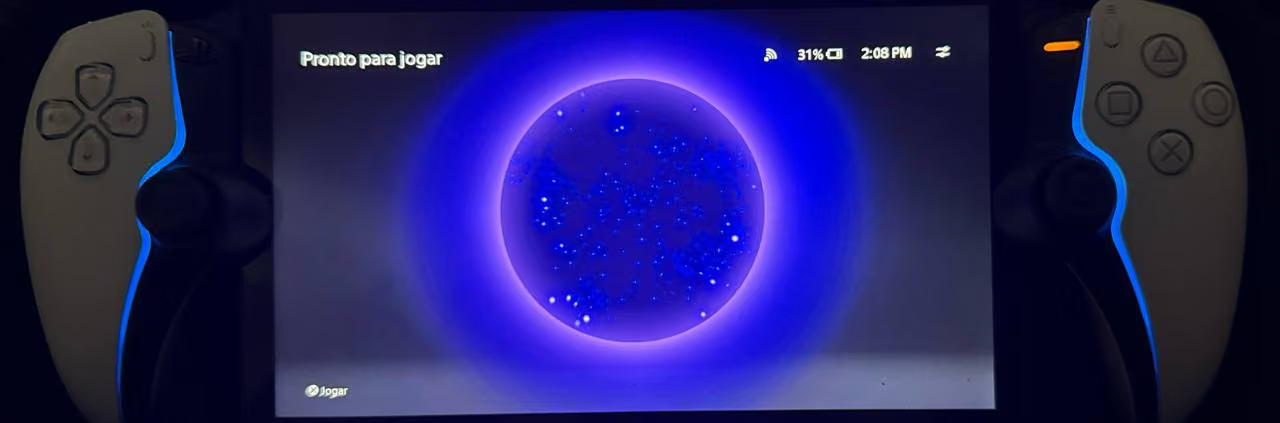
Will GTA 6 work on the PlayStation Portal?
Short answer: very likely, but not officially confirmed by Rockstar.
The PS Portal is not a console. It is a screen with DualSense-style controls that streams games from your PS5 using Remote Play. Any PS5 game that supports Remote Play can, in principle, be played on it. Since GTA 6 supports Remote Play on PlayStation, the Portal should follow. The reason we keep the caution is simple: Rockstar did not name the device, and only launch night will show whether everything (controls, menus, the experience in general) behaves as expected.
What we can say based on how the Portal works with other games:
- The game runs on your PS5. On the Portal you get the same 30 FPS target Rockstar announced for consoles, sent as a video stream. The Portal's screen is 1080p, so image quality depends on your connection rather than on the Portal itself.
- Your PS5 must be on or in rest mode and connected to the internet.
- Connection: Sony asks for at least 5 Mbps and recommends at least 15 Mbps. At home, a PS5 wired to the router plus a good 5 GHz Wi-Fi signal for the Portal makes a big difference.
- Away from home: the Portal works on other Wi-Fi networks too, but hotel and public Wi-Fi often add lag. For a game with driving and shooting, latency is what you will feel first.
Also keep in mind that the Portal's cloud streaming option for PS Plus Premium only covers games in that catalog. GTA 6 is not announced for PS Plus (see GTA 6 on PS Plus and Game Pass at launch?), so on the Portal it will go through Remote Play from your own PS5.
Playing on a phone or tablet
On PlayStation, the official PS Remote Play app is available on iOS and Android. On Xbox, Remote Play goes through the official Xbox app on mobile. In both cases you stream your own console, nothing is installed on the phone.
Practical points:
- Use a controller. Touch controls exist, but GTA 6 has a lot of inputs. A DualSense or Xbox controller over Bluetooth, or a clip-on mobile controller, is far more comfortable.
- Check the network. On PlayStation, Remote Play also works on mobile data, but it can eat a lot of data quickly. On Xbox, Microsoft recommends a 5 GHz Wi-Fi or a good mobile connection and roughly 10 Mbps; check Xbox Support for the current figures.
- Do not download anything called "GTA 6 Mobile". There is no mobile version of the game. Remote Play is a console feature, not a phone app for GTA 6. We break it down in our article on the GTA 6 mobile version.
Playing on a PC or Mac via Remote Play
Streaming your console to a computer is possible through the PS Remote Play app (Windows and Mac) or the Xbox app (Windows). That is a way to play your console copy on a laptop, nothing more:
- It is not a PC version of GTA 6, and it will not give you mods, higher frame rates or PC graphics settings. The PC release date is still unannounced.
- Your progress stays on your console, because the game is running there.
- The same goes for a Steam Deck or another handheld PC: you can install a Remote Play client, but you are still playing the console version from a distance. Our Steam Deck guide explains why native play on handhelds is not on the table.
How to set it up before November 19
Do this now so you do not lose time on launch night.
On PS5:
- Go to Settings > System > Remote Play and turn on Enable Remote Play.
- Go to Settings > System > Power Saving > Features Available in Rest Mode, turn on Stay Connected to the Internet and Enable Turning On PS5 from Network.
- Pair your PS Portal, or sign in to the PS Remote Play app on your phone or computer with the same PlayStation account.
On Xbox Series X|S:
- Go to Settings > Devices & connections > Remote features and turn on Enable remote features.
- Set the power mode to Sleep (formerly "Instant-on"). Remote Play does not work from Energy-saving or a full shutdown.
- Open the Xbox app on your phone or PC, sign in with the same account and choose to play remotely from your console.
For both:
- Make sure GTA 6 is fully installed. Pre-loads opened on November 10 and the game needs a lot of space, see our pre-load guide and the 212 GB figure.
- Run a Remote Play test with another game this week to find any network problem in advance.
- Wire your console to the router with an Ethernet cable if you can. It is the single most effective fix for a choppy stream.
- Check our pre-launch console checklist for updates, storage and account settings.
What is still unclear
Until players actually test it, a few points remain open:
- Image quality when streaming. Rockstar's 30 FPS target applies to the console. How it looks once compressed on a Portal or a phone depends on your network.
- Specific limits. Some games restrict certain features during Remote Play (for example, some video or broadcast functions). Rockstar has not said whether GTA 6 has any.
- GTA Online. Online play has not been detailed for launch, so Remote Play behavior online is unknown.
- Unlock time. Remote Play does not change when you can start playing: the game unlocks at midnight in your store's time zone. See what time GTA 6 unlocks where you live.
We will update this guide on launch night with what players see on the PS Portal and on mobile.
Bottom line
Rockstar has confirmed Remote Play for GTA 6 on PlayStation and Xbox. If you have a PS5 and a PS Portal, or a phone and a controller, you should be able to play away from the TV, as long as your console and your network are ready. What Rockstar has not done is name specific devices, so keep expectations reasonable until launch night, and set everything up now so you are not fighting menus at midnight.
Comments (0)
No comments yet. Be the first!