GTA 6 Motion Blur: How to Turn It Off for a Sharper Image
GTA 6 motion blur is a 0 to 10 slider in the Display tab, set to 3 by default. Here is how to turn it off or lower it, and what else makes the picture soft.
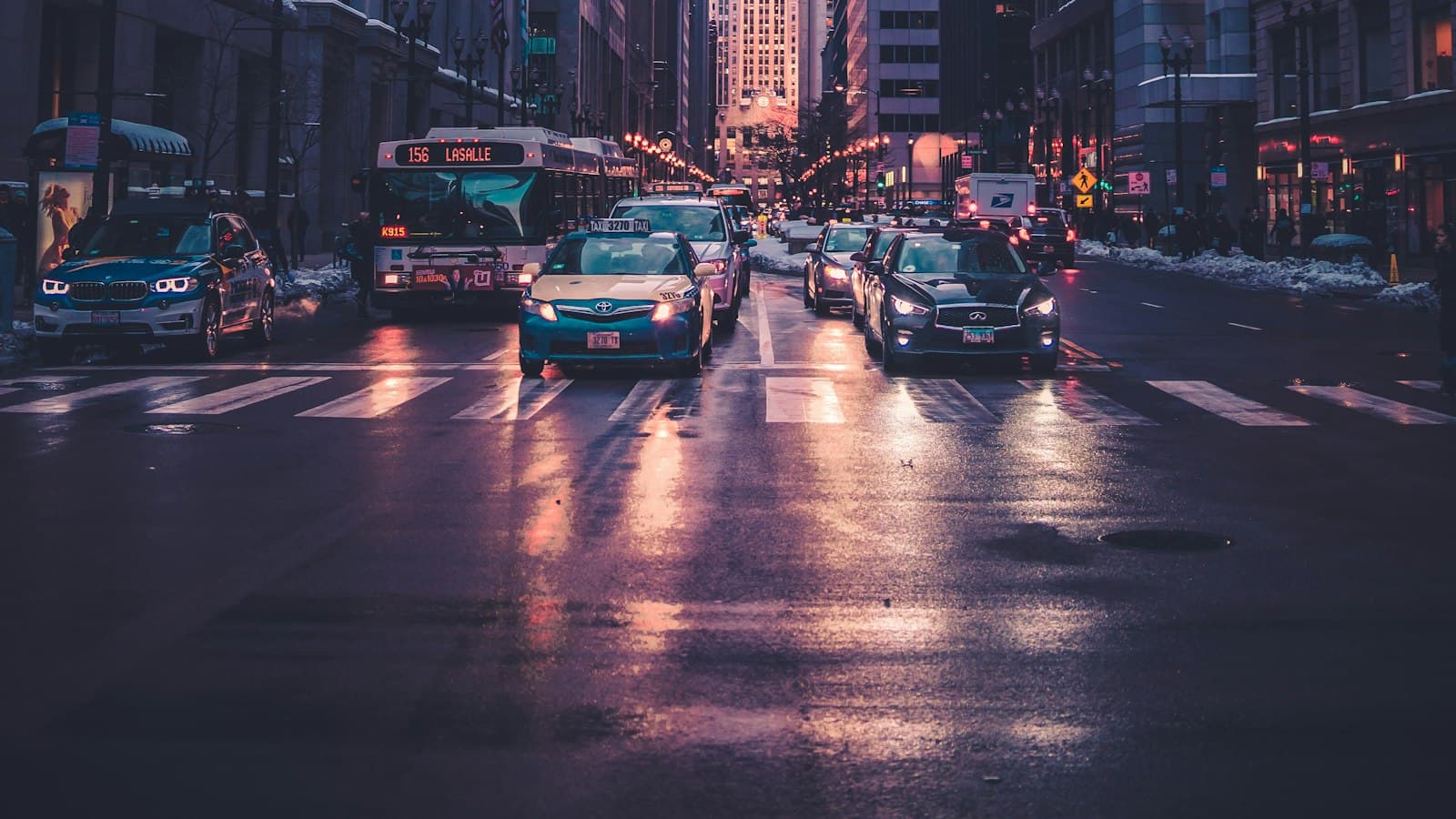
To turn off GTA 6 motion blur, pause the game, open Settings, go to the Display tab and drag Motion Blur Strength down to 0. The slider runs from 0 to 10 and starts at 3, the same on PS5, PS5 Pro and Xbox Series X|S. At 0 the effect is gone entirely; anything in between keeps some smoothing. Below: the exact path, which value to pick at 30 FPS, and the other things that make the picture soft, some of which no setting can fix.
Where the motion blur setting is
The option sits in the same place on every console, as Engadget's walkthrough shows:
- Pause the game (Options on PS5, Menu on Xbox) and select Settings at the bottom of the menu.
- Press R1 or RB to move across the tabs until you reach Display.
- Scroll to the Visual Effects heading, about halfway down.
- Lower Motion Blur Strength to the value you want. Changes apply straight away, so you can unpause and test.
It is a slider, not an on/off switch, which is why many players miss it while looking for a toggle. You can change it at any time, during a mission or in free roam.
Which value to choose at 30 FPS
GTA 6 runs at 30 frames per second on every console, with no performance mode (our guide to GTA 6's 30 FPS and the missing performance mode explains why). That frame rate is the reason the blur exists: it fills the gap between frames so camera pans look less jerky. Removing it sharpens the image but makes each frame step more visible.
- 0: the sharpest picture in motion. Best if blur makes you dizzy or you mostly drive fast. BGR recommends this for the cleanest image.
- 1 or 2: the middle ground most guides suggest. Street signs and cars stay readable at speed, and the camera still feels smooth.
- 3 (default): fine on an LCD TV if nothing bothers you.
- 4 and above: a cinematic smear. Only worth trying on an OLED TV (see below).
The quickest test is to drive down a busy avenue at night and swing the camera around, once at your new value and once at the old one. Motion blur is a common trigger for motion sickness, so if long sessions leave you queasy, start at 0 and also turn off Camera Shake in the Camera tab. Our GTA 6 accessibility options guide lists the other comfort settings.
The OLED exception
OLED screens switch pixels almost instantly, which can make a 30 FPS game look slightly choppy. TechRadar collected reports from OLED owners who keep the slider at 4 to 6 for that reason, while others see no stutter at 0. If you play on an OLED and 0 feels jerky, go back up one notch at a time.
Other reasons the image looks blurry
Motion blur only affects movement. If the picture looks soft even when you stand still, the cause is elsewhere.
Depth of field and film grain cannot be turned off
GTA 6 has no depth of field, film grain, sharpness or vignette option. The full list of Display options published by Playday shows Motion Blur Strength as the only blur-related slider. Rockstar uses depth of field heavily in cutscenes and close-ups, so some background softness is intended and stays.
Your console's resolution
Each console renders a different image. Digital Foundry's analysis, reported by GTA BOOM, puts the PS5, PS5 Pro and Series X at 1440p internally. The PS5 Pro reconstructs a near-4K image with PSSR, while the base PS5 and Series X use a softer upscale. The Series S starts from 720p and reaches about 1080p with FSR 4, so it will always look softer on a big 4K TV. None of this is adjustable in the menus.
Your TV's own processing
Turn off motion smoothing (TruMotion, Motionflow, Motion Plus and the like) and put the TV in Game Mode. Interpolation makes a 30 FPS game look odd and adds input lag. Also check the TV's sharpness slider: too high creates halos, too low softens everything. Our GTA 6 TV guide covers the picture modes, and the fix for a dark image and HDR helps if the picture is murky rather than blurry.
For every other option worth changing on day one, see our GTA 6 best settings to change first. The French settings guide from Big N also suggests lowering the blur first.
FAQ
Is there a motion blur toggle in GTA 6?
No, only a slider. Setting Motion Blur Strength to 0 in the Display tab switches the effect off completely.
Does turning off motion blur improve performance?
No. The game stays capped at 30 FPS either way. The setting only changes how motion looks, not how fast the game runs.
Can I turn off depth of field in GTA 6?
No. There is no depth of field or film grain option on any console, so background softness in cutscenes and close-ups cannot be removed.
Why does GTA 6 look blurry on Xbox Series S?
The Series S renders at a much lower resolution than the other consoles and upscales to about 1080p. Lowering the motion blur helps in motion, but the base softness remains.
Sources
Comments (0)
No comments yet. Be the first!