GTA 6 Driving Controls: Headlights, Indicators, Handbrake and Trunk
Every GTA 6 car control on PS5 and Xbox, from the handbrake and headlights to turn signals, hazards, the radio and the trunk, plus what the Classic scheme moves.
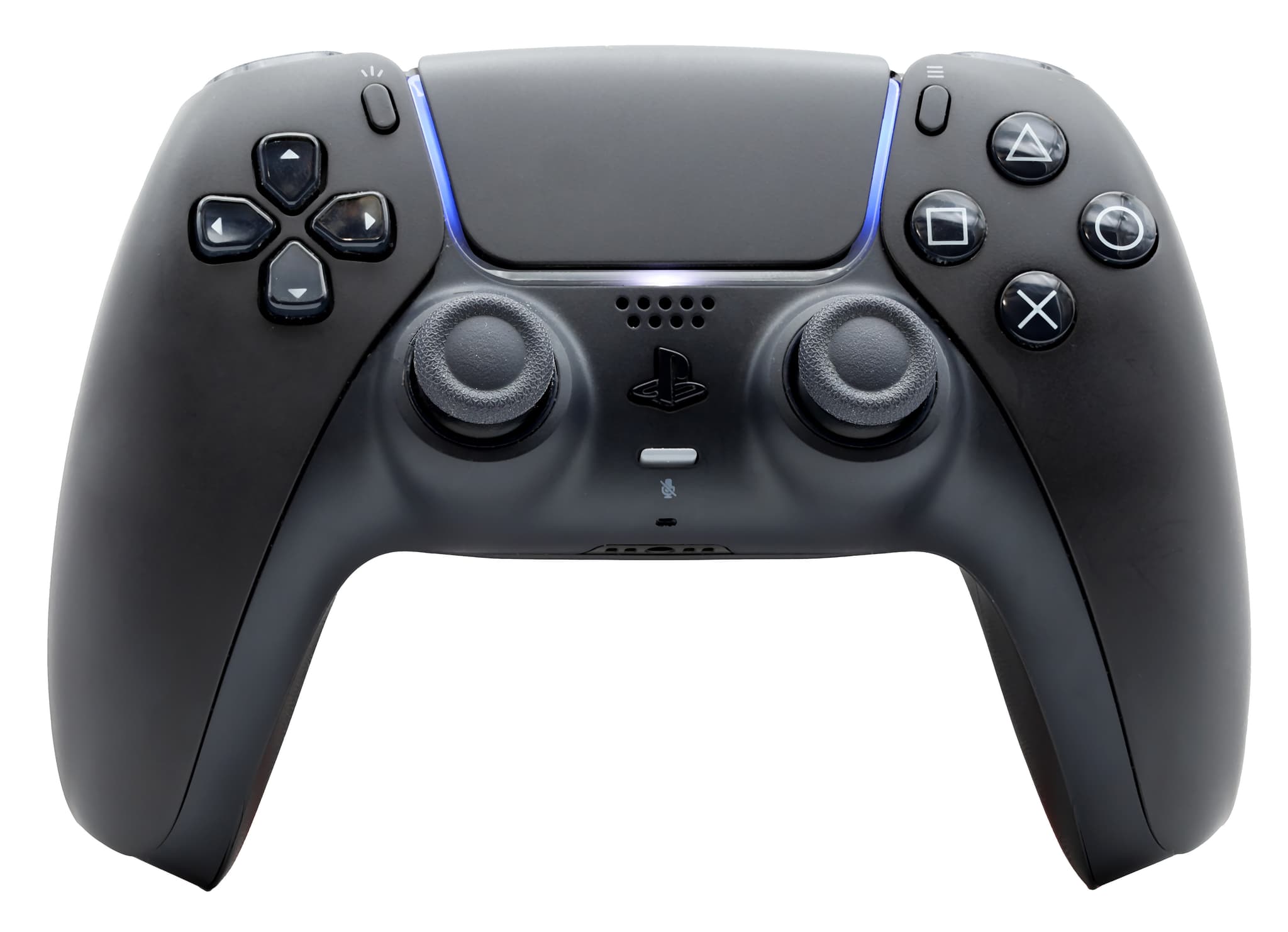
GTA 6 car controls on PS5 and Xbox Series X|S put the essentials on the triggers and face buttons: R2/RT accelerates, L2/LT brakes and reverses, Cross/A pulls the handbrake, and a tap of Circle/B switches the headlights on or off. Turn signals sit on the left and right of the d-pad. This guide lists every driving input in the Default scheme, then the less obvious ones: hazards, the radio, the trunk and the one change the Classic scheme makes behind the wheel.
GTA 6 car controls: the full list
The table covers cars, motorbikes and boats, which share one "land and water vehicles" layout. It matches the button maps published at launch by Insider Gaming, Shacknews and GamerFuzion.
| Action | PS5 | Xbox Series X|S |
|---|---|---|
| Accelerate | R2 | RT |
| Brake / reverse | L2 | LT |
| Steer | Left stick | Left stick |
| Handbrake | Cross | A |
| Headlights (tap) | Circle | B |
| Duck in your seat (hold) | Circle | B |
| Horn / nitrous | L3 | LS click |
| Look around | Right stick | Right stick |
| Look behind (hold) | R3 | RS click |
| Indicate left (tap) | D-pad Left | D-pad Left |
| Vehicle menu (hold) | D-pad Left | D-pad Left |
| Indicate right (tap) | D-pad Right | D-pad Right |
| Partner menu (hold) | D-pad Right | D-pad Right |
| Phone (tap) / interact (hold) | D-pad Up | D-pad Up |
| Objective, minimap (tap) / quick navigation (hold) | D-pad Down | D-pad Down |
| Shoot from the vehicle | R1 | RB |
| Holster (tap) / loadout (hold) | L1 | LB |
| Exit the vehicle | Triangle | Y |
Two habits from GTA 5 need unlearning. The handbrake is no longer on R1/RB, which now fires your weapon, and the horn moves to a click of the left stick. If you play with the stick-click sprint on foot, your left thumb already knows where L3 is.
Headlights and ducking
A quick tap of Circle (B on Xbox) toggles the headlights. Holding the same button makes your character duck behind the dashboard, which is handy when someone opens fire on the car. If the lights do not change, you are holding the button a fraction too long: tap it and release.
Turn signals and hazard lights
Tap Left or Right on the d-pad to flash the matching indicator. A tap is the key word: Gamerblurb points out that holding the direction opens a menu instead. Holding Left brings up the vehicle menu, and that is where the Hazards option lives, to light both indicators at once.
Using the indicators is optional. Gamerblurb found no confirmed reward for signaling in normal traffic, and no sign that the police fine you for skipping it, so treat them as a role-play touch rather than a requirement.
Horn and nitrous
The horn and nitrous share L3 (a click of the left stick on Xbox). In a car without nitrous, the click sounds the horn; in a car fitted with it, the same input fires the boost. Whether nitrous triggers on a hold or a press is a setting: the Gameplay tab of the options menu lets you pick, as our guide to the best GTA 6 settings to change first explains.
Radio: changing stations while you drive
The radio is not on its own button. Beebom describes holding Left on the d-pad to open the station wheel, then cycling with L1/R1 (LB/RB on Xbox) or picking a station with the right stick, and pressing Cross (A) to switch it on or off. Since the button maps list a vehicle menu on that same hold, expect the radio and the vehicle options to appear together when you hold Left.
Opening the trunk
The trunk is opened from outside the car, not from the driver's seat. Walk to the rear of your vehicle and wait for the prompt. Gamerblurb's weapon storage guide gives Triangle on PS5 to open it, then a hold of L1 (LB on Xbox) to open the storage screen and stash a weapon. The trunk holds the guns your loadout cannot carry, and some vehicles come with gear already inside: see what you find in a police car's trunk.
What the Classic scheme changes in a car
Switching to the GTA 5-style Classic scheme moves only one thing behind the wheel. Insider Gaming and GamerFuzion both show the headlights (tap) and duck (hold) moving from Circle/B to Square/X, while Circle/B becomes melee. Every other driving input stays where the table above puts it. The on-foot changes are bigger; our guide to GTA 6 classic controls lists them and shows where the setting is.
Console players cannot remap single buttons at launch, so these presets are the only way to move inputs inside the game.
Driving settings worth knowing
- Reduced Vehicle Damage (Gameplay tab) makes cars tougher in crashes, useful while you learn the new handling.
- Auto Drive lets your character drive to a waypoint from the cinematic camera; our GTA 6 auto-drive guide gives the buttons and the Unrestricted setting.
- A damaged car can be fixed without a garage visit, as our guide on how to repair your car for free shows.
FAQ
How do you turn on headlights in GTA 6?
Tap Circle on PS5 or B on Xbox while driving. With the Classic control scheme, tap Square or X instead. Holding the button makes you duck rather than switching the lights.
What is the handbrake button in GTA 6?
Cross on PS5 and A on Xbox, in both the Default and Classic schemes. R1/RB, the GTA 5 handbrake, now shoots from the vehicle.
How do you put the hazard lights on in GTA 6?
Hold Left on the d-pad to open the vehicle menu, then select Hazards. A short tap on Left only flashes the left indicator.
Can you change the driving controls in GTA 6?
Only by switching presets in Settings > Control Scheme (Default, Classic or Left-Handed). PS5 and Xbox have no button-by-button remapping in the game.
Sources
Comments (0)
No comments yet. Be the first!