GTA 6 Classic Controls: How to Get the GTA 5 Button Layout Back on PS5 and Xbox
GTA 6 moves sprint to the left stick and jump to X/A. One setting puts the GTA 5 layout back: here is where to find Classic controls, exactly which buttons change, and what it does not touch.
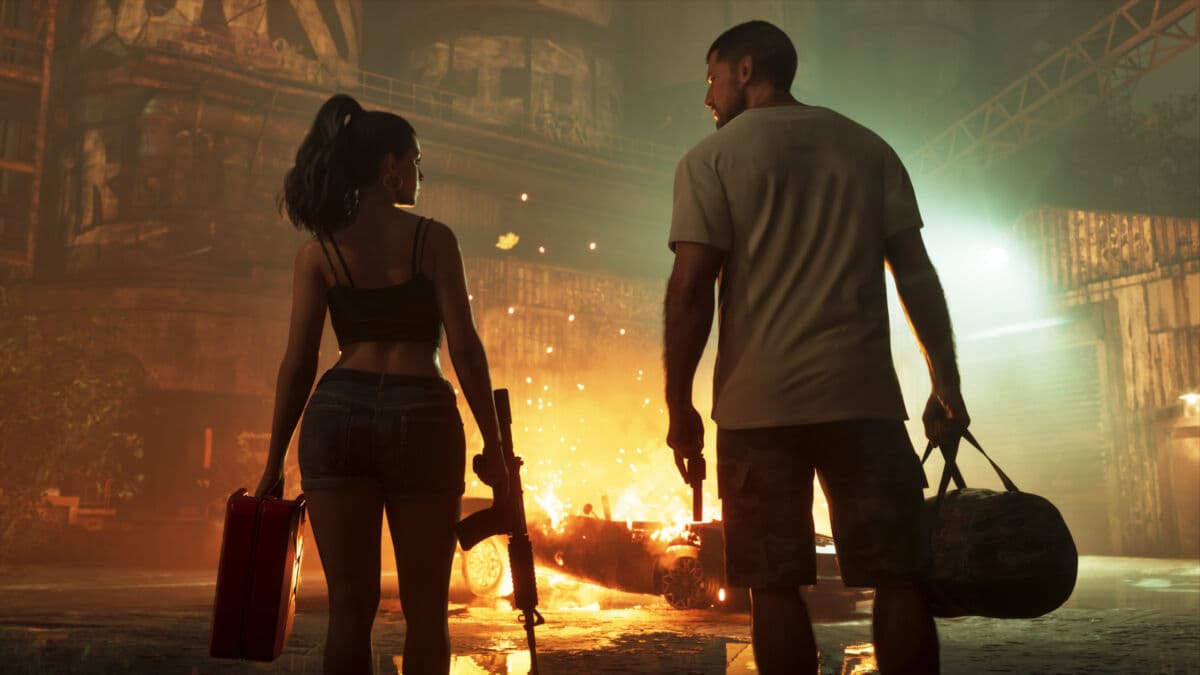
GTA 6 ships with a new default control scheme, and the first minutes in Leonida can feel wrong if your thumbs learned the game on GTA 5: you press X to sprint and Jason jumps, you press Square to jump and he throws a punch. The fix is built in. GTA 6 classic controls are one option away, in the very first tab of the settings menu, on both PS5 and Xbox Series X|S. This guide shows where it is, which buttons it moves, and what it leaves alone (aiming is a separate setting).
The essentials
- Where: pause the game, open Settings, then the Control Scheme tab (the first one). Switch from Default to Classic with the D-pad, back out and confirm.
- What Classic changes: sprint goes back to X/A (tap it, GTA 5 style), jump and climb go back to Square/X, melee goes to Circle/B and crouch to L3.
- What it does not change: shooting, aiming, cover and interacting stay where they are. Aim style (Lock-On, Partial or Free Aim) lives in the Gameplay tab.
- No free remapping on console: you pick a preset, you cannot move each button one by one.
- Takes effect immediately, mid-mission included. You can switch back at any time.
Why GTA 6 controls feel different from GTA 5
For two decades, GTA on a gamepad meant tapping X (A on Xbox) to run. GTA 6 breaks that habit: in the Default scheme, sprint sits on a click of the left stick (L3), jump and climb move to X/A, melee takes Square/X and crouch takes Circle/B. Launch-day guides from Game Rant, Cultured Vultures and Push Square all describe the same new layout.
The logic is the one most modern action games follow: running on the stick leaves your right thumb on the camera, so you can look around while you sprint. We covered that reasoning, and the move away from lock-on aiming, in our GTA 6 default controls explainer. It works, but if you have hundreds of hours of GTA 5 or GTA Online behind you, expect a few accidental punches and jumps before it sticks. That is exactly what the Classic scheme is for.
How to enable classic controls in GTA 6, step by step
- Pause the game. Press Options on PS5 or the Menu button on Xbox.
- Open Settings. It sits in the pause menu alongside the map and the other tabs.
- Go to the Control Scheme tab. It is the first tab, before Controller, Gameplay, Display, UI, Camera and Audio.
- Switch to Classic. Use the left and right D-pad to cycle from Default to Classic. The screen previews the full button map for the selected scheme, so you can check it before leaving.
- Back out and confirm. Press Circle on PS5 (B on Xbox) and confirm the change when the game asks (Game Rant describes holding X on PS5 to save).
The change is applied right away, there is no restart. Try it in a quiet street before your next mission: sprint, jump a fence, crouch, throw a punch.
Default vs Classic: every button that moves
The table below uses PlayStation names first, Xbox second. It is built from the Game Rant and Cultured Vultures guides, cross-checked with the button table published by gta6map.net.
| Action (on foot) | Default scheme | Classic scheme (GTA 5 style) |
|---|---|---|
| Sprint | L3 / LS click | X / A (tap) |
| Jump and climb | X / A | Square / X |
| Melee | Square / X | Circle / B |
| Crouch | Circle / B | L3 / LS click |
Everything else stays on the same buttons in both schemes, according to gta6map.net's table: R1/RB for cover, R2/RT to shoot, L2/LT to aim, Triangle/Y to interact, and a hold of R3 to look behind. Driving, flying, cycling and swimming controls are shown on the same Control Scheme screen; the guides above report no change to them when you switch to Classic, so check the in-game preview if a vehicle input feels off.
One detail to watch: gta6map.net reports that the Classic layout also changes the D-pad, turning single presses into hold-to-open menus (phone app, radio, quick navigation), and lists a "rest" action on a long press of L3. Only that source describes it so far, so look at the preview screen before you rely on it.
A third preset: Left-Handed
The Control Scheme tab would also hold a Left-Handed preset, which according to gta6map.net swaps the two sticks and the shoulder buttons: move on the right stick, camera on the left, shoot on L2/LT and aim on R2/RT. It is separate from Classic, so it does not give you the GTA 5 face-button layout. If you need it for comfort or accessibility, our GTA 6 accessibility guide lists the other options that help.
Can you remap buttons one by one?
Not on console at launch. Cultured Vultures and gta6map.net both report that GTA 6 offers no free button remapping on PS5 and Xbox: you choose one of the presets and live with it. A few single actions can still be tuned in the Controller tab, according to gta6map.net, such as whether aiming, interacting or the loadout menu use a hold or a press, and what the touch pad does.
If you absolutely need a custom layout today, both consoles have system-level remapping (Accessibility settings on PS5, Ease of Access on Xbox). It applies to every game, so use it carefully, and remember that GTA 6's on-screen prompts will not follow your swaps. A PC version is not out yet; Cultured Vultures expects custom key mapping there, but Rockstar has not detailed it. A controller with back paddles is another way to keep sprint on a face button without touching anything in the game; see our best controller for GTA 6 roundup.
Classic controls do not change aiming
This is the most common confusion. Switching to Classic moves buttons, it does not bring back GTA 5's aim. GTA 6's targeting has its own setting, under Settings > Gameplay > Targeting, with three modes reported by the launch-day guides:
- Lock-On: the closest to GTA 5's default. Pressing L2/LT snaps to a target.
- Partial: a lighter assist that helps when you are already close to a target.
- Free Aim: no snap at all, the reticle goes where you push it.
An Aim Assist Strength slider sits next to it. If you want the full GTA 5 feeling, combine Classic controls with Lock-On, then lower it once you are comfortable. Our best settings to change first walks through that menu, subtitles, HDR and camera included, and our guide to the end of auto-aim explains how combat changed.
Other settings worth a look in the same menu
While you are in Settings, two options in the Gameplay tab may help newcomers, according to Push Square: Accessible Combat, which lowers the damage you take in gunfights, and Reduced Vehicle Damage, which makes cars tougher in crashes. Push Square reports that neither one locks trophies or changes the story. They are optional and you can turn them off later.
Should you switch to Classic?
It depends on how much GTA you have played.
- Switch if you have years of GTA 5 or GTA Online muscle memory, if you play GTA Online and GTA 6 in the same week, or if your left stick is worn and clicks badly.
- Stay on Default if GTA 6 is your first GTA, or if you play other action games that already run on L3. The new layout keeps your right thumb on the camera during chases, which helps once your hands adjust.
A fair test: give Default one evening. If you are still jumping instead of running after an hour, switch to Classic. Either way, our list of beginner mistakes to avoid in GTA 6 has more to fix in your first hours.
FAQ
Does GTA 6 have GTA 5 controls? Yes. Select the Classic scheme in Settings > Control Scheme. It brings back tap-to-sprint on X/A and jump on Square/X.
Where is the Control Scheme option? Pause, open Settings: Control Scheme is the first tab, on PS5 and Xbox.
Does Classic change the aiming? No. Aiming is set separately under Gameplay > Targeting (Lock-On, Partial or Free Aim).
Can I remap buttons freely in GTA 6? Not on PS5 or Xbox at launch, according to two launch-day guides. You choose between presets.
Does switching controls affect trophies or saves? No. It is a comfort setting, changed at any time, with no impact on progress.
Comments (0)
No comments yet. Be the first!